

TL;DR
- Complications are the small data points users add to their watch face — the most valuable real estate on the platform
- WidgetKit is the modern API. ClockKit is deprecated for new development
- A useful complication answers a question in one number, one icon, or one phrase — nothing more
- Update budget matters: watchOS allots a daily refresh budget. Complications that exceed it stop refreshing
- Applefy ships complications across all complication families and watch face types as part of standard watchOS engagements
Written by the Applefy team — we ship native watchOS apps with WidgetKit complications across multiple complication families and watch faces.
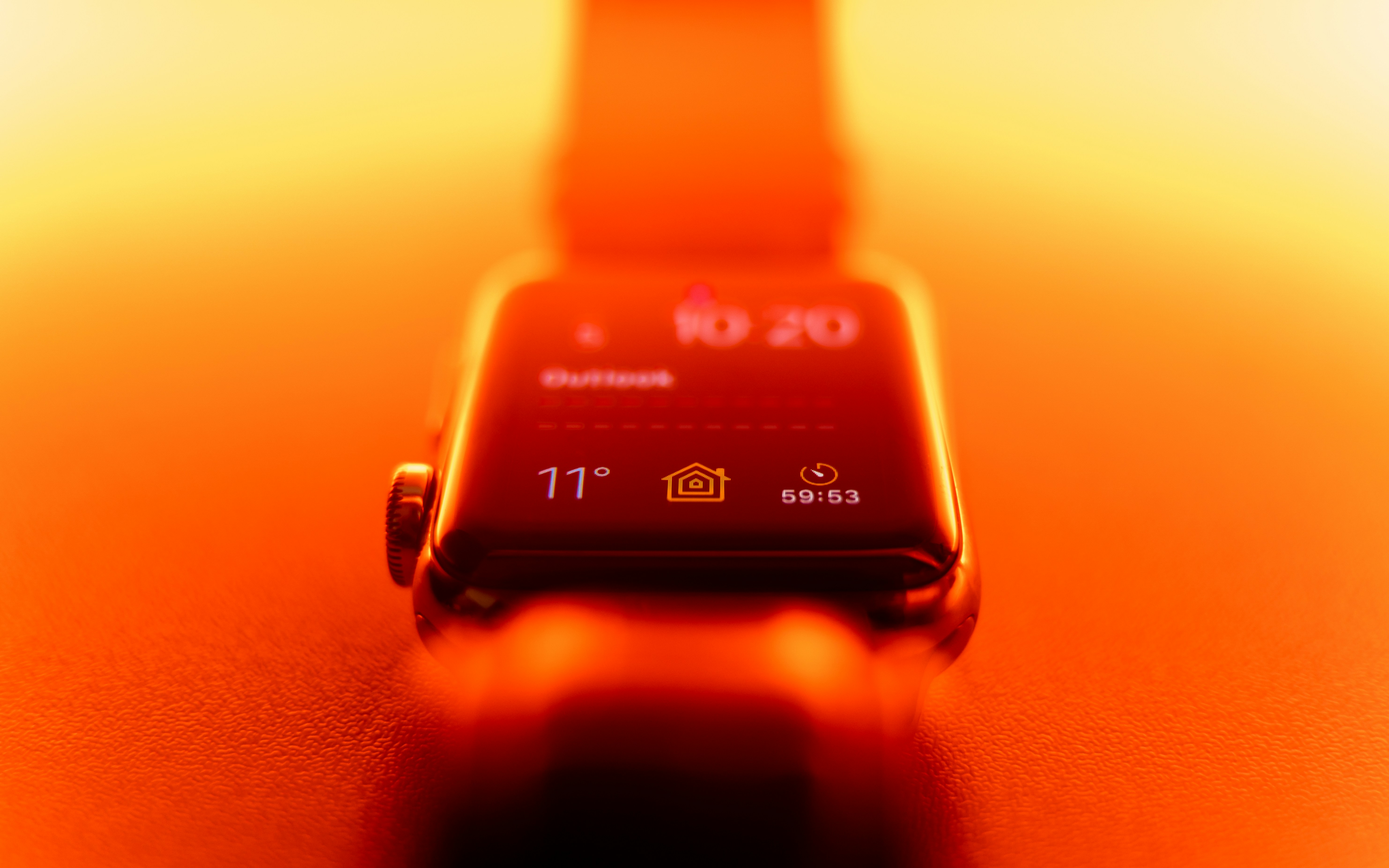
The watch face is the home screen of the Apple Watch. Complications are the small pieces of information users place on it: weather, calendar, ring progress, stock price, custom data from third-party apps.
If your watch app earns a complication slot on the user's primary watch face, it gets seen 50–100 times a day. That's the most valuable real estate Apple offers third-party apps. Building a complication that earns and keeps that slot is the highest-leverage thing a watchOS app can do.
What Complications Are (and Aren't)
Complications display a single, glance-readable piece of information on the watch face. They are not mini-apps. They are not interactive UIs. They are surfaces.
Tap a complication, and it launches the underlying app. That's the only interaction. Everything else is information.
WidgetKit vs ClockKit in 2026
The framework story:
- WidgetKit is the modern API. Same framework as iOS widgets, extended to watchOS. It's what new development uses in 2026.
- ClockKit is the legacy framework. Deprecated for new development. Existing apps with ClockKit complications still work, but new features ship to WidgetKit.
If a studio is pitching ClockKit for a new watchOS project in 2026, that's a signal they haven't kept up.
Complication Families and Watch Faces
Apple groups complications into families based on size and shape. Each watch face supports a subset of families.
| Family | Use case | Example data |
|---|---|---|
| Circular Small | Activity rings, Modular face corners | Single icon or value |
| Corner | Infograph corners | Curved gauge plus value |
| Inline | Text on the face top | Short string |
| Rectangular | Modular face large slots | Headline plus subhead |
| Graphic Circular | Infograph center | Gauge plus icon plus value |
| Graphic Rectangular | Infograph rectangular | Title plus body plus image |
| Extra Large | Single-complication watch faces | Big readable value |
To compete for prime watch face placement (Modular, Infograph, Modular Compact), you need to ship at least the families those faces use. Most apps ship 4–6 family variants.
What Makes a Useful Complication
Three rules from real watchOS work:
- Answer one question. "What's my heart rate?" "How many calories did I burn?" "Is the next train delayed?" Not multiple questions in one space.
- Be readable in 0.5 seconds. If the user has to focus to read the value, the complication has failed. Use the right family size for your data type.
- Update appropriately. Heart rate complication: real-time during workouts. Weather: hourly. Stock price: every 5–15 minutes. Calendar: when events change. Match update frequency to the data's actual rate of change.
The Update Budget Trap
watchOS allocates a daily refresh budget per app. Complications that exceed it stop updating until the next day, leaving a stale value on the user's face.
Common mistakes that blow the budget:
- Updating every minute when the data changes hourly
- Triggering updates from network responses without throttling
- Refreshing on every iPhone notification
The right pattern: use Timeline-based updates with WidgetKit. Schedule entries at known transition points. Let the system manage the actual refresh.
Real Applefy Example
One client shipped a finance app with a stock-price complication that updated every 30 seconds. Within a week, half their users complained the value was stuck.
Cause: 30-second updates on iPhone backgrounded the watch process and exhausted the daily budget by mid-morning. Stocks froze.
Fix: switched to 5-minute Timeline entries during market hours, paused outside hours. Same perceived freshness for users, ~95% reduction in update frequency, complications never went stale again.
Update strategy is the difference between a complication that works and one that quietly fails.
Design Constraints
- Use SF Symbols and system colors. Custom icons rarely look right at complication sizes. Apple's iconography is calibrated for the format.
- Test on Always-On Display. Complications stay visible at 1Hz refresh in AOD. Designs that depend on color saturation fail in AOD's reduced palette.
- Plan for accessibility. VoiceOver reads complications aloud. Plain values work. Custom drawn elements without accessibility labels don't.
- Localize the data, not just the labels. 1.5K calories vs 6.3 MJ. Different regions, different units. WatchOS handles this if you use HealthKit's standard types.
When to Add Complications
Add complications when:
- Your app surfaces a number, status, or upcoming event the user wants to glance at
- The data changes often enough that pulling out the phone or opening the app is friction
- Users have asked for it (always a good signal)
Don't add complications when:
- Your app's value is in the experience, not a number
- The data only matters in specific moments, not as ambient information
- You haven't shipped the underlying watchOS app yet
How Applefy Builds Complications
Standard practice on every watchOS engagement:
- Map the user's question. What single piece of information is worth the watch face slot?
- Pick complication families to support. Cover Modular and Infograph at minimum.
- Implement with WidgetKit using Timeline-based updates.
- Test on Always-On Display.
- Profile refresh frequency against the daily budget.
- Verify VoiceOver works with each variant.
Book a free conversation about your watchOS app: applefy.tech
Frequently Asked Questions
What's the difference between WidgetKit and ClockKit?
WidgetKit is the modern complication framework, shared with iOS widgets. ClockKit is the legacy framework, deprecated for new development. New watchOS apps in 2026 should use WidgetKit.
How many complications should my app ship?
Cover the major families: Circular Small, Corner, Rectangular, Graphic Circular, Graphic Rectangular. That's enough to support Modular, Infograph, and Modular Compact — the three most-used watch faces. 4–6 variants is typical.
How often can a complication update?
Apple doesn't publish a strict rate, but practical guidance: 4–12 times per hour for active complications. Use Timeline-based updates with WidgetKit and let the system handle scheduling. Excessive updates exhaust the daily budget.
Can complications show real-time data like live heart rate?
Live heart rate during a workout, yes — via Workout API. Outside an active workout, no. Apple intentionally limits real-time updates to preserve battery.
Are complications visible in Always-On Display?
Yes. Complications stay visible at reduced refresh rate in AOD. Design them to be readable in AOD's reduced color palette.
Can users add my complication to any watch face?
Only watch faces that support the family your complication offers. Some watch faces are restrictive — Solar, Astronomy, Vapor — and don't accept third-party complications at all.
Will my ClockKit complication still work in 2026?
Yes — ClockKit is deprecated, not removed. Existing apps continue to function. New development should be WidgetKit. Plan to migrate when you're shipping a watchOS app update anyway.
How does Applefy decide which complication families to ship?
We map the user's primary watch faces, then cover the families those faces support. Modular and Infograph are the most common targets. We add Extra Large for users on single-complication faces.
Do complications use battery?
Yes, but minimally if implemented correctly. Timeline-based WidgetKit complications are far cheaper than custom polling. Battery cost is dominated by update frequency.
Can I make my complication interactive?
Beyond launching the app on tap, no. Complications are display surfaces, not interactive controls. The full UI lives in the watch app.







.svg)


